5 min read

Mohammed Al-Anazi
Product Manager at Salla
Would you like to read a summary of the article?
Summarize with ChatGPT
Summarize it with Claude
Summarize it with Perplexity

You add a digital card in Salla by going to Products, clicking "Create New Product", selecting "Digital Card", and entering the product details, price, and image. After that, you configure the country, value, and code options according to the card type, and review how it will appear to the customer before publishing. These steps follow the Salla Help Center updated in October 2026; refer to the current interface when executing as field names may change.
This article helps you prepare your first proper product. The official guide includes screenshots and detailed steps; keep it open alongside your control panel. Before entering any data, verify the card supplier, resale rights, and operational region, so that a supplier's error does not turn into a misleading description in your store.
What should you prepare before opening the product form?
Keep a sheet handy containing the official card name, issuer, value, country or account region, currency, purchase price, selling price, code expiration date (if applicable), and support method. Ensure whether what you are selling is account credit, a game code, or a subscription. Different types alter the description needed by the customer.
Here is an example of clear phrasing without inventing details: "[Platform] balance card worth [Value], for [Region confirmed by supplier] accounts. The code will be delivered via [Tested delivery method] upon [Valid payment condition]. Please verify your account region before purchasing." Replace the brackets with verified information, and never use "All Countries" unless the card's source explicitly confirms it.
What are the steps within Salla?
According to the official guide, navigate through the products menu, create a digital card, save the basic details, and then manage codes, country options, and values. Codes can be entered manually or uploaded in bulk via a file using the template provided by the system. The guide mentions duplicate checks during upload, but this does not replace auditing the file and its source before using it.
Field or Decision | How to review it from the customer's perspective? |
|---|---|
Product Name and Image | Do they clearly distinguish the card from a subscription or a different game? |
Value and Price | Is the credit value clear, and is the price the customer pays distinct from it? |
Country or Region | Does the option match the customer's account and the card terms? |
Code and Validity | Is the code correct, unused, and displayed in its proper status? |
Description and Support | Does the customer know how to receive, redeem, and who to contact if they face issues? |
If certain codes are tied to a specific country, place them under the correct country option. The Help Center clarifies that "All Countries" is strictly for codes not restricted to a specific region; do not select it merely to broaden access to a card with actual restrictions. For multi-value products, match the code for each value with its respective price and description before publishing.
Two screenshots from setting up a card in Salla
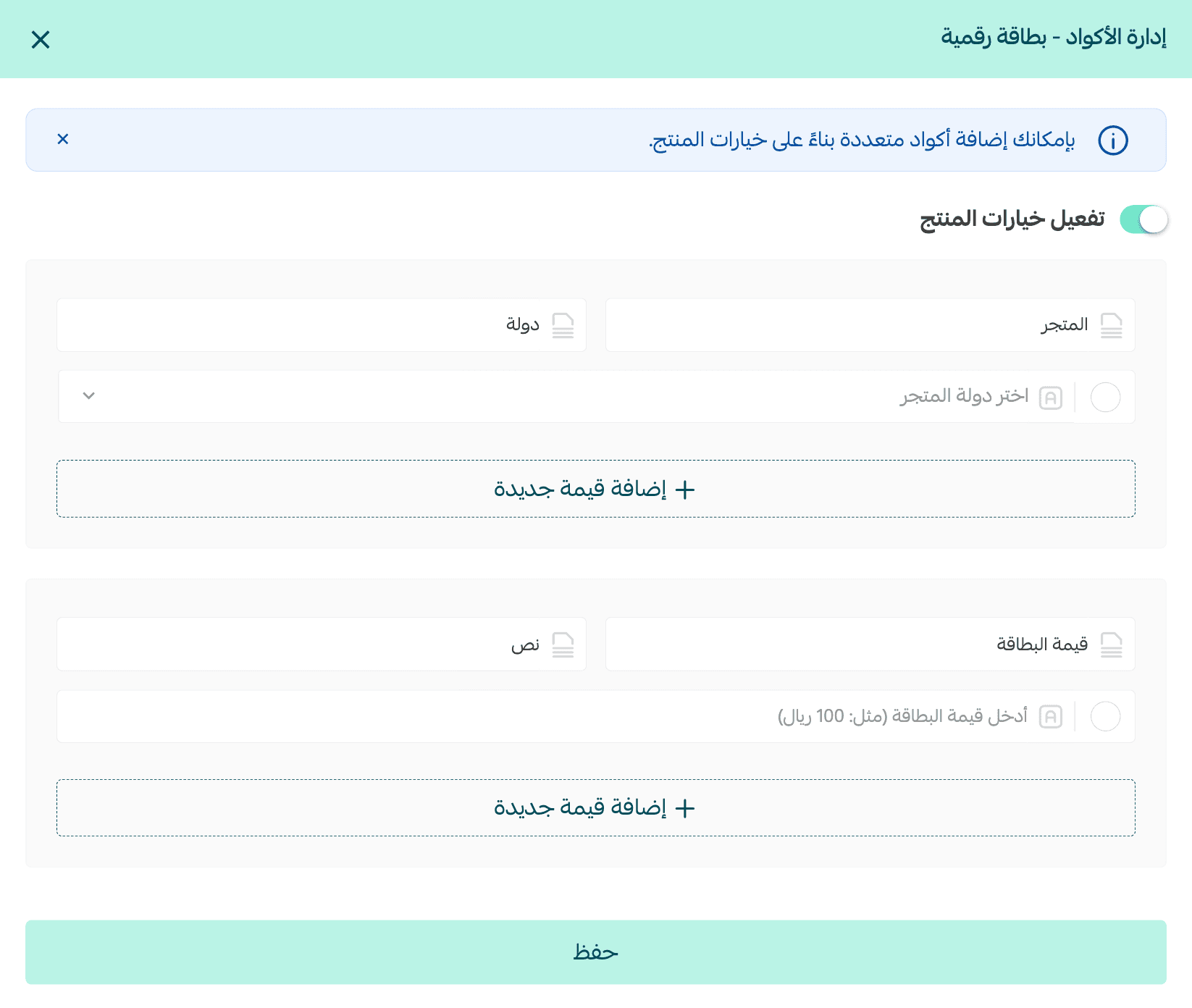
The first Help Center screenshot shows where to set the product country and values under "Code Management". This step comes before writing a promise such as "Works for Saudi accounts" in your description; select what matches the card's actual terms. Field names may vary slightly as the interface updates, so refer to the current guide for adding cards during setup.
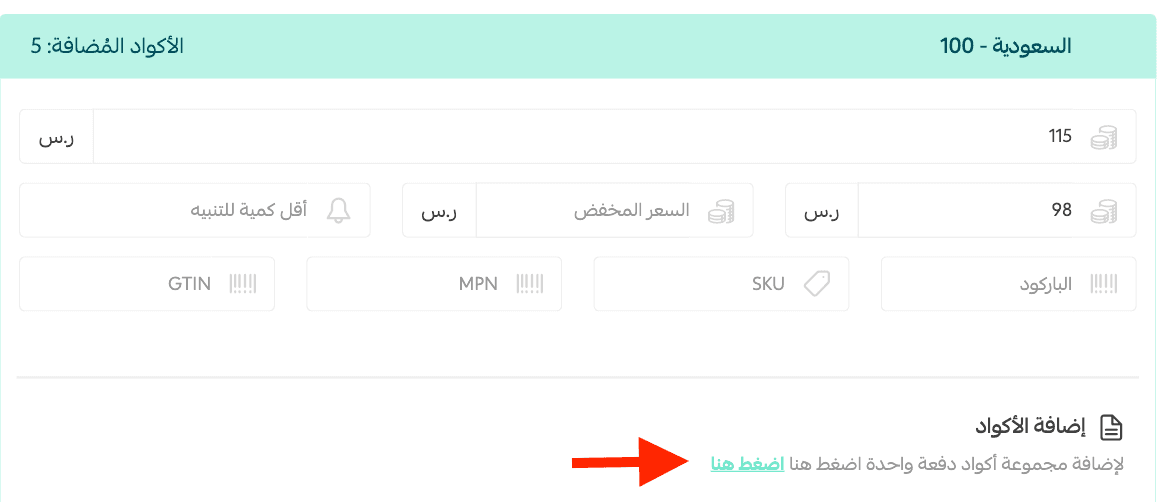
The second screenshot shows the number of added codes, price fields, minimum quantity alerts, and the option to bulk-upload codes. The presence of these fields does not mean that the five codes shown in the image apply to your product or that the sample prices suit you. Follow the workflow order only: enter codes from an authorized source, verify their count and uniqueness, set your price after calculating costs, and then test with a single order.
If you have two region or value options, open each option from the customer storefront and verify that it displays the correct price and description. Salla's guide mentions that the system checks for duplicate codes upon entry; nonetheless, maintain a log of code sources and avoid re-uploading batches that were previously sold or exposed during testing.
How do you audit codes after adding them?
From the Digital Cards Log, you can view the code status, product, country, value, and associated order number when using the log. Keep track of expired or sold codes, and do not copy the list of codes into a file accessible to the entire team. Grant access only to those who need it according to your store settings and policies.
If you are using an integrated supplier instead of uploading codes yourself, review their integration instructions and ensure the product, region, and value match. Do not mix two fulfillment methods in a single product before knowing which one will process the order. Start setting up your store's card on Salla, then proceed to test a complete order before marketing.
Prompt to review the product description
Pre-publishing checklist
☐ Source, resale rights, and compatibility are verified.
☐ Name, image, value, and region match.
☐ Selling price is clear, and cost price is logged for internal review.
☐ Codes are placed in the correct option, and no previously exposed codes are used.
☐ Opened the page on mobile and reviewed the description from a new customer's perspective.
Frequently Asked Questions
Can I upload codes via a file?
Yes, the Salla Help Center explains how to use the template and upload CSV or XLSX files with duplicate verification. Use the current template and review the outcome after uploading.
When should I select "All Countries"?
Only when the card itself is unrestricted by country according to the terms of its issuer and supplier. Selecting this option in the interface does not alter the issuer's terms.
Is the code sent to the customer immediately upon adding it?
Adding codes is merely a preparation step. You must configure payment and delivery according to your workflow, then conduct a safe test to verify what actually happens after ordering.
Once the details are configured, set up your card store on Salla. If you haven't created an account yet, start registering directly.

Mohammed Al-Anazi
Product Manager at Salla
68
Article
Featured author

E-commerce
How did Tech Card store make more than SAR 20,000 in a month through affiliate marketing?
Tech Card started its journey selling digital products in 2020. As the business grew, it leveraged Salla's tools to expand sales channels and boost conversion rates. Affiliate marketing helped generate over SAR 20,000 in sales in a single month—accounting for around 2% of the store's total sales—while abandoned cart reminders helped recover approximately 3.5% of customers, according to the published success story. This experience highlights how businesses can combine reaching new customers with maximizing value from existing visitors, without relying solely on increasing ad spend.
7 minutes read
Arwa Abdulkarim

E-commerce
You spent on ads and got the orders… where's the profit?
Your campaign may bring in more orders without leaving you with a better profit. Learn how to calculate what remains after product costs, discounts, order fulfillment, and advertising, so you know what to review before increasing the budget or stopping the campaign.
9 minutes read
Arwa Abdulkarim

E-commerce
Between losing profit and losing customers… how do you price your products?
Pricing your products starts with understanding your costs, what customers compare you to, and the value they get for the price. Learn how to balance attracting customers with maintaining your profit margins, and how to test your decisions before rolling them out across your store.
9 minutes read
Arwa Abdulkarim

E-commerce
Your store sales are increasing, but where is the liquidity?
Your store is making sales, but cash flow isn't enough to pay suppliers and purchase new stock? Discover where your money is going, and learn how to review inventory and expenses before liabilities pile up.
8 minutes read
Arwa Abdulkarim